Features
Events and Shifts
Events are created as an event series. The series holds everything the dates have in common (title, description, registration options), and a separate shift, called an event instance, is created from it for each date and time the event runs.
A series can follow one of several patterns:
- Consecutive – several back-to-back sessions in one day, eg four one-hour shifts from 9am, with an optional break between them.
- Daily – every day between two dates, at the same time.
- Weekly – on chosen days of the week, eg every Saturday morning from March to June.
- Monthly – on a weekday of the month (eg the first Monday) or a date (eg the 15th).
- Custom dates – any set of one-off dates and times that don't follow a pattern.
A single date can be moved, changed or cancelled on its own without affecting the rest of the series. Titles and descriptions flow down from the series to each instance, so they only need to be created once.
Changing an Event's Dates
Changing the dates of a whole series deletes all of its registrations. This can't be undone.
When the dates of an event series are changed on its edit form, the site doesn't adjust the existing shifts. It deletes every shift in the series and creates them again from the new dates. Every registration for those shifts is deleted with them, including past ones, and everyone registered for an upcoming shift is emailed to say the event has changed. People then have to register again.
What causes this – changing any of these on the series:
- the repeat pattern (eg weekly to monthly)
- the start or end date
- the time, length or end time of the shifts
- the days of the week or month it repeats on
- the extra dates added to, or left out of, the pattern.
Registration details are not lost – every deleted registration is saved in the Registration Log, with the person's details and the shift they were registered for, so a manager can see who was registered and contact them.
Before anything is deleted, the form shows a Confirm Date Changes page listing what has changed. Leaving that page without confirming keeps everything as it was.
What is safe to change – the title, description, registration settings (such as capacity, the waitlist and when registration opens), and anything else that isn't a date.
To change one shift – open that shift and edit it on its own, eg to move it to a different time or cancel it. Only that shift is affected, and the people registered for it are emailed about the change.
If a series' dates need to change after people have registered, talk to an administrator first, as it is sometimes possible to add or move shifts without removing anyone's registration.
Shift Registration
Each series has its own registration settings:
- Series or instance registration – people either sign up for the whole series in one go (eg a course), or choose individual shifts.
- Open or scheduled registration – registration can open as soon as the event is published, or only within a set window, eg opening two weeks before each shift.
- Who can register – each event is open to one of:
- Public – anyone who can see the site.
- Public with registration code – anyone, as long as they enter the current registration code. This is useful for sharing shifts with a particular group without requiring accounts. The code is set in Site Settings and can be changed at any time.
- Members only – people must have an account and be logged in.
- Administrators only – only administrators can add registrations, eg for shifts that are allocated rather than chosen.
- Duplicate check – each series can stop the same email address registering twice for the same shift. Tick Restrict registration to once per email address? in the series' registration settings; it is off for new series until ticked.
- Mobile number validation – phone numbers are checked as Australian mobile numbers and tidied into a standard 04xx xxx xxx format, so the registration lists are consistent and easy to dial or text.
Capacity and Waitlists
Every shift has a limit, so it never has more people than it needs:
- Capacity – each shift has a set number of places, and the number of places is shown on the event, so people can see how busy a shift is.
- Waitlist – when a shift is full, people can join a waitlist instead. If someone cancels, the first person on the waitlist is promoted automatically and emailed to tell them they now have a place.
How the waitlist works:
- Turn it on for each event in its registration settings.
- It's only offered once a shift is full, and not after registration has closed.
- People on the waitlist don't take a place, and get an email confirming they're on it.
- When a registered person cancels, the person who has waited longest moves into the free place and gets an email telling them so.
- One person moves up for each cancellation.
- Adding places to a shift doesn't move anyone up, so move people off the waitlist yourself.
- Editing a registration doesn't change whether someone is on the waitlist. Only administrators can move someone on or off it, with the "Add user to waitlist" option on the registration form.
My Registrations
Logged-in members can see all of their upcoming registrations on the My Registrations page, and change or cancel them from there. Cancelling frees the place straight away, and if there's a waitlist the next person is promoted.
People who register without an account receive an email with a private link to change or cancel their registration, so they don't need to contact the organisation to pull out.
Email Notifications
The site emails people automatically when they:
- register for a shift
- join the waitlist
- are promoted from the waitlist to a place
- are registered for a shift or series that is changed (eg a new time)
- are registered for a shift or series that is cancelled or deleted.
Emailing registrants: managers can send a message to everyone registered for a shift – registrants, the waitlist, or both – eg to share parking details or a last-minute change. Notification emails can also be resent if needed.
Account emails: welcome, awaiting approval, account approved, password reset, blocked and cancelled emails all use branded templates that can be edited. Administrators are also emailed when a new account is waiting for approval.
Every email can include event details (title, date, time, place) and the person's own details such as their name and mobile number.
Registration alerts: managers, owners and administrators can switch on Email me registration activity on their account page to get an email whenever someone registers for a shift, joins a waitlist, or moves off a waitlist into a place, with the person's details and the shift.
Email log: every one of these emails is saved in the Email Log, so you can check what was sent, to whom, and whether it went out.
Reminder emails before each shift are covered on their own page: Email Reminders.
Shift Dashboard
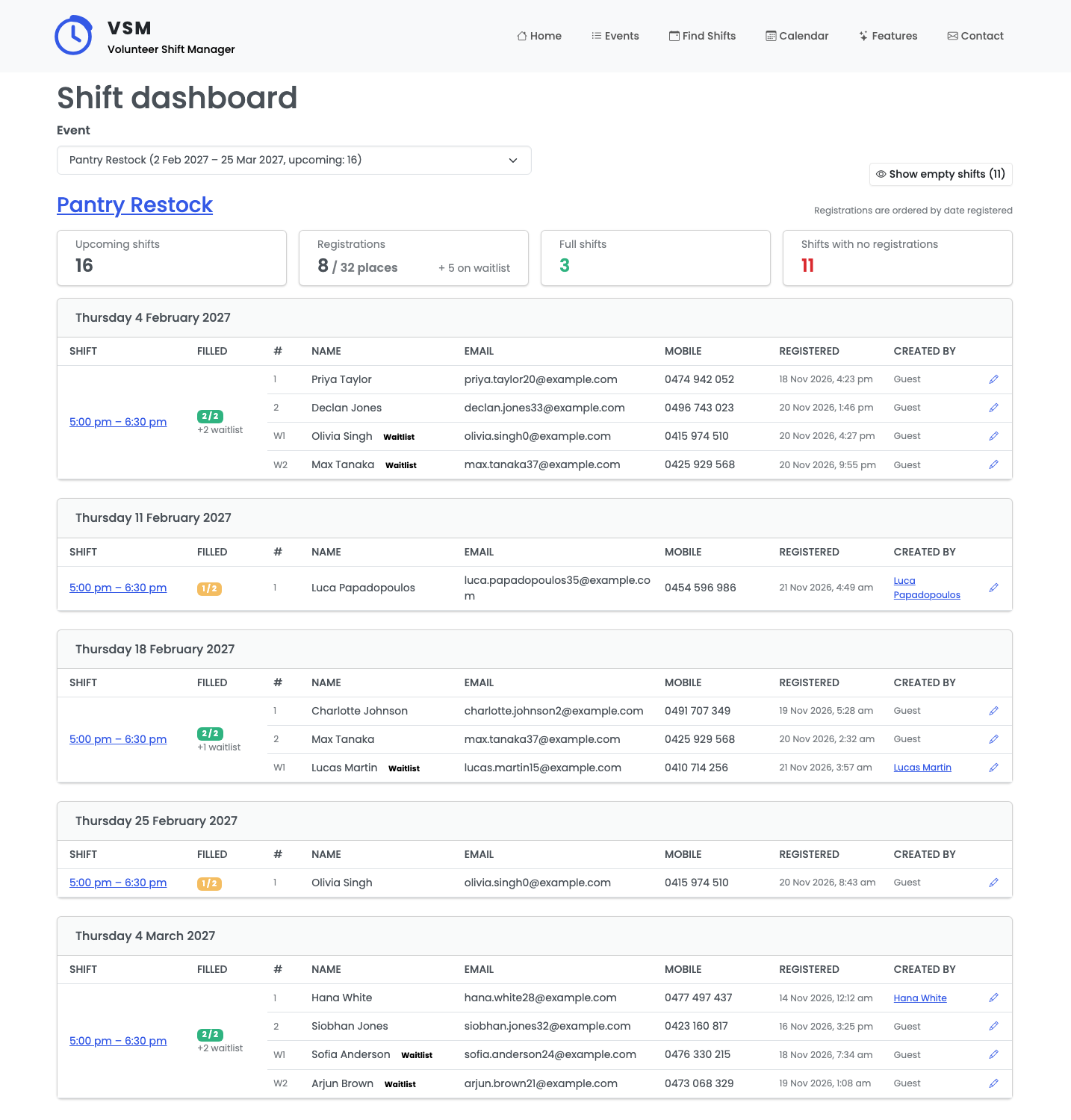
The Shift dashboard shows one event on a single page: every shift, grouped by day, with everyone registered for each. It's in the Manager menu, and is available to managers and to any other role given the View the dashboards permission.
- Choose an event – pick an event from the list at the top and the page updates straight away. Each event in the list shows its dates and how many upcoming shifts it has.
- Summary – four panels show the number of upcoming shifts (and how many are past), registrations against the places available (and how many people are on the waitlist), how many shifts are full, and how many have no registrations yet.
- How full each shift is – the Filled badge is green when a shift is full, yellow when it still has places, and red when nobody has registered, with the number on the waitlist underneath.
- Who is coming – each registrant is listed with their email, mobile, when they registered, and who made the registration: a member's name, or Guest when someone registered without logging in.
- Order – registrations are ordered by date registered, earliest first. Registered people are numbered 1, 2, 3… and the waitlist follows as W1, W2… which is the order people move up in.
- Empty and past shifts – shifts with no registrations and shifts that have already happened are hidden to keep the page short. Show empty shifts and Show past shifts bring them back.
- Editing – the pencil at the end of each row opens the registration, and saving it returns to the dashboard.
Reports and Exports
- Registrations – everyone registered, by event and shift.
- Registrations Latest – the most recent sign-ups, to see at a glance who has just registered.
- Unique Registrants – one row per email address, with a CSV export for spreadsheets or mailing lists.
- Registration log – every registration created, changed or deleted, newest first, with a CSV export.
- Email log – every event email sent to people, newest first, with a CSV export.
Dashboard
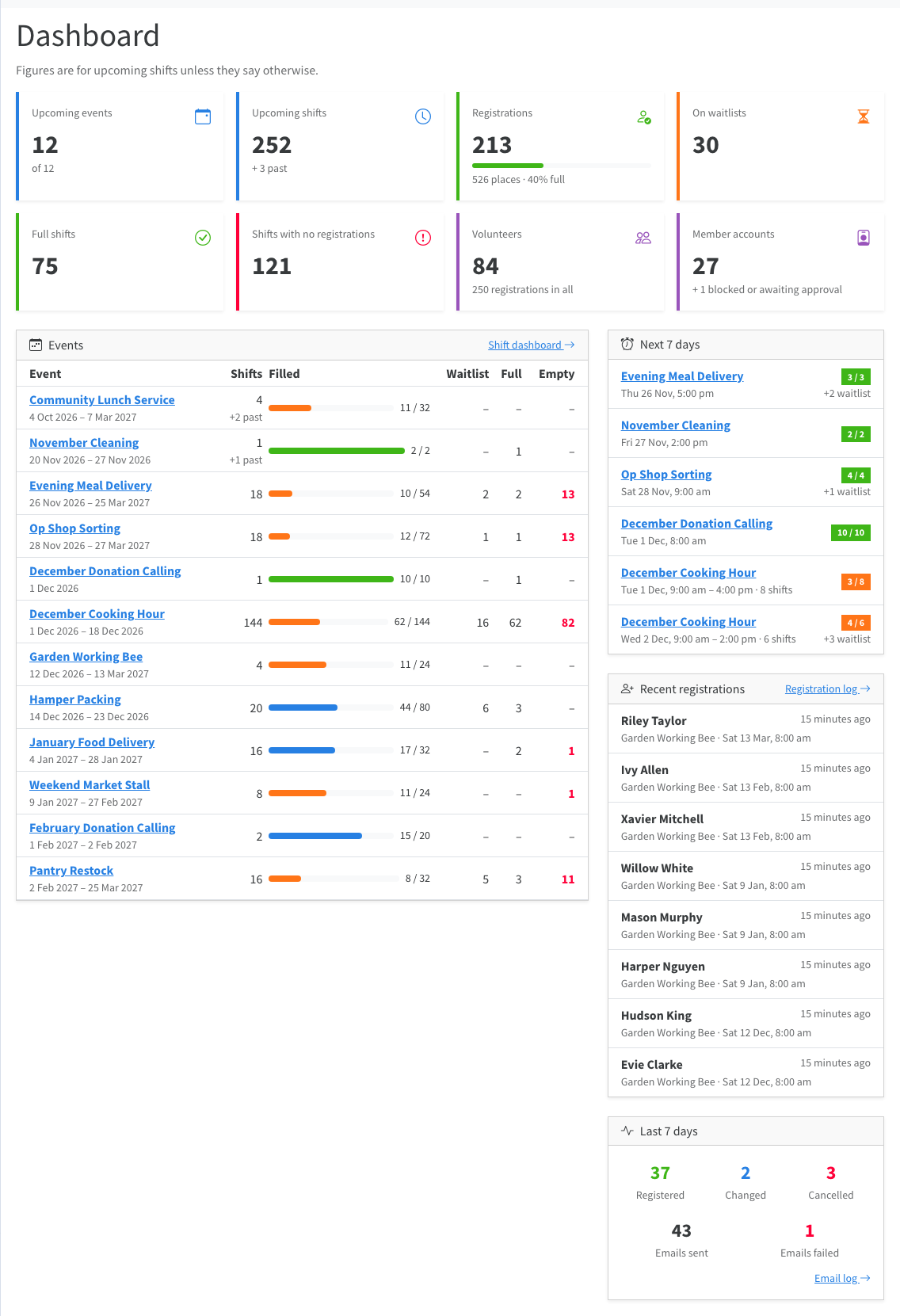
The Dashboard gives managers the whole picture on one page: every event, shift and registration, and what needs attention. It's the first link in the Manager menu, and is available to managers and to any other role given the View the dashboards permission. Figures are for upcoming shifts unless they say otherwise.
- Headline figures – eight panels show the upcoming events and shifts, registrations against the places available (with how full they are), how many people are on waitlists, how many shifts are full, how many have no registrations yet, the number of people registered, and member accounts (including any waiting for approval).
- Every event – a table lists each event with its dates, its upcoming shifts, a bar showing how full they are, and how many people are on its waitlists, how many shifts are full and how many are still empty. Empty shifts stand out in red, so events that need people are easy to spot. Click an event to open it in the Shift dashboard.
- The next 7 days – what's coming up this week, one line per event per day, with its times and a green, yellow or red badge showing how full it is.
- Recent registrations – the latest sign-ups, with the event, the shift and how long ago, including anyone who joined a waitlist.
- The last 7 days – how many registrations were made, changed and cancelled, and how many emails were sent or failed, with links to the Registration log and Email log. This panel only shows to people who can see those logs.
- Always up to date – the figures come straight from the events and registrations, so there's nothing to refresh or export.
Finding a Shift
People can browse upcoming shifts in several ways:
- Events – upcoming shifts that still have places available, shown as cards in date order, earliest first. Full and past shifts are left out, so everything listed can be signed up for. The list can be narrowed by event, year, month, day of the week and AM or PM, and each filter only offers choices that have matching shifts.
- Calendar – a month and week calendar of upcoming shifts. Click a shift to see its details and register.
- Events List – a table of events showing each one's capacity, the number registered, the number on the waitlist, and whether registration is open.
Events can also be added to a personal calendar using the iCal link shown with each event.
Activity Logs
The site keeps two logs so that nothing about a registration is lost and every email to them can be checked: the Registration Log and the Email Log. Both are in the Manager menu, and each has its own permission, so an administrator can choose which roles see them. Entries are written by the site itself and can't be edited, and each copies the details as they were at that moment, so it still reads correctly after the registration, shift or event has been deleted.
Registration Log
The Registration log records every registration as it is created, changed or deleted – even when a shift or a whole event is deleted, or an event's dates are changed.
- What is recorded – the event, the shift's start and end, the person's first and last name, email and mobile, and whether they were on the waitlist. It also records when it happened, who made the change (a member's username, Anonymous for someone not logged in, or System for automatic changes), and the page it was made from.
- Changes – when a registration is edited, the entry lists what changed, eg Mobile: 0400 111 222 → 0412 333 444 or Waitlist: yes → no when someone moves up from the waitlist. The previous first name, last name, email and mobile are also kept in their own columns in the CSV download.
- Finding entries – the newest are shown first, with coloured badges for Created, Changed and Deleted. Filter by action, event, a name, email or mobile number (current or previous), or a date range, and click a column heading to sort by it.
Email Log
The Email log keeps a copy of every event email sent to people, so you can check what someone was sent, when, and whether it went out.
- Which emails – registration and waitlist confirmations, moved off the waitlist, reminders, shift or event changed, shift or event cancelled, messages sent to a shift's registrants, and resent registration emails. Account emails, such as password resets, aren't included.
- What is recorded – the date, the email type, whether it was sent, who it went to (name and email), the subject, the event and shift, who or what sent it (a manager, the person themselves, or System for automatic reminders), and the full text of the email.
- The email as sent – click a subject to open the email exactly as it was sent, with its links clickable, eg to check that someone's "modify your registration" link works.
- Failed emails – if the mail server refuses an email, it is marked Failed in red with the reason.
- Finding emails – the newest are shown first, with coloured badges for each type of email. Filter by email type, status, event, a name, email address or subject, or a date range, and click a column heading to sort by it.
Downloading and Purging
- Download – the CSV button under each log downloads every column for the entries currently shown (including the full text of each email), ready to open in Excel or Google Sheets.
- Purging – to keep the logs a manageable size, an administrator can purge the oldest 1,000 entries, or all of them, under Configuration → People → Logs, which has a tab for each log. Each purge is recorded in the site's own log messages.
Look and Feel
The site uses a responsive Bootstrap 5 theme that works on phones, tablets and desktops. Its settings page lets an administrator restyle the site without any coding:
- Colour schemes – a choice of 25 ready-made Bootswatch themes, from light and clean to dark and bold.
- Fonts – a choice of web fonts for body text and headings.
- Menu layout – the main menu can sit on the left, centre or right of the top bar, and collapses behind a menu button on phones.
- Menu icons – an icon can be shown before each main menu link.
- Top navigation position – the top navigation can scroll away with the page, stick to the top of the window once it reaches it, or stay fixed at the top all the time, so the menu is always within reach.
- Tables – optional striped rows and a choice of row spacing for lists and reports.
- Style guide – administrators can open a page showing every Bootstrap component, and a searchable page of over 2,000 icons, to preview how a change looks across the whole design.
Member Accounts
- Sign-up with approval – visitors can create an account. They confirm their email address, and an administrator approves the account before it can be used.
- Real names – accounts store a first name, last name and validated mobile number, and the site shows people by their real names rather than usernames.
- Easy login – members can log in with either their username or their email address.
- Pre-filled forms – when a logged-in member registers for a shift, the form is filled in with their name, email and mobile number.
Roles and Permissions
- Member – registers for shifts and manages their own registrations.
- Manager – creates and edits events, manages registrations and waitlists, emails registrants, runs reports, views the registration log and the email log, and maintains Organisation Details and Site Settings.
Email Reminders
Email reminders go out automatically before each shift, so the people registered for it don't forget to turn up. Reminders are set up per event: each event can have them on or off, its own timing and its own message.
Setting Up Reminders
Reminders are part of an event's registration settings, so they appear once registration is switched on for the event. On the event's edit form:
- Enable Registration Reminders – tick the box to send reminders for every shift in the event.
- When to send – Send a reminder [number] [minutes, hours, days, weeks or months] before the event starts, eg 2 days or 3 hours before. The time is counted back from each shift's own start, so a weekly event gets a reminder before every shift.
- Reminder Message – the text of the email. It can use tokens, which are replaced with each person's own details when the email is sent: the event's title, the shift's date, time and place, and the person's name and mobile number, eg Hi [first name], just a reminder that you're on for [event] at [time] on [date]. The list of available tokens is shown under the message.
When an event is saved with reminders on, the site works out the reminder time for every one of its shifts and stores it with the shift.
How Reminders Are Sent
- Checked automatically – the site's scheduled tasks check for shifts whose reminder time has arrived. Each shift is reminded once: as soon as its reminders go out, the shift is marked as sent so nobody gets a second copy.
- Who gets one – everyone registered for the shift. For events where people register for the whole series at once, everyone registered for the series is reminded before each shift.
- The waitlist – people on the waitlist aren't sent reminders, as they don't have a place yet. If they're moved off the waitlist before the reminder goes out, they're reminded with everyone else.
- The email – the subject is Upcoming Event Reminder (an administrator can change it for the whole site), and the body is the event's reminder message, in the site's branded email template.
- Shifts with nobody registered – nothing is sent, and the shift is marked as done.
Timing
Reminders go out the first time the site's scheduled tasks run after a shift's reminder time, so they arrive close to the time set rather than to the minute. For that reason, a lead time of hours or days works better than minutes.
- Changing the timing – changing the number or units on an event works out every shift's reminder time again, so the new timing applies to all of its shifts.
- Turning reminders off – unticking the box clears the reminder times, and no further reminders are sent for the event.
Checking What Was Sent
Every reminder is saved in the Email Log as a Reminder, sent by System, with who it went to, the event and shift, and the full text exactly as it was sent. If the mail server refuses a reminder, the log shows it as Failed with the reason.
Site Management
- Organisation Details and Site Settings – the organisation name, the registration code and related options are edited on simple forms.
- Friendly page addresses – new pages are given a readable address from their title automatically, eg a page called "Staff Guide" is found at /staff-guide.
- Contact form – visitors can get in touch through the Contact form, and submissions are kept on the site as well as emailed.
- Trash – deleted pages, page addresses and menu links go to a trash bin and can be restored, so nothing is lost by accident.
Spam Protection
Public forms are protected by Honeypot and Antibot, which block automated spam submissions without making people solve puzzles.